

 About Us
What’s New
The Agentic Cloud Defender does more than answer questions, it helps teams find and remediate what actually matters, cutting through the noise to focus on the risk that counts. Prowler Cloud sharpens Lighthouse AI with the following improvements over the open-source version:Persistent Chat Sessions
Conversations are saved and can be revisited or resumed at any time.
GPT-5.5 by Default
An upgraded default model delivers stronger reasoning and tool calling.
Normal and Agentic Views
Switch between the standard interface and a chat-first agentic view.
Side Panel on Every Page
Open Lighthouse AI as a side panel from any page to get help in context.
Provider Connection Checks
Credentials are validated automatically when a provider is configured.
Chat View
Lighthouse AI is no longer a separate section in the left navigation. Prowler Cloud now offers two application views: a normal view for browsing dashboards, findings, and configuration, and an agentic chat view, powered by Lighthouse AI, for conversational, multi-step security analysis. Conversations are saved automatically, so earlier sessions can be reopened and resumed at any time. Promoting the chat to a top-level view gives Lighthouse AI the room it needs for a fully agentic workflow and makes the Agentic Cloud Defender a primary way to work in Prowler Cloud.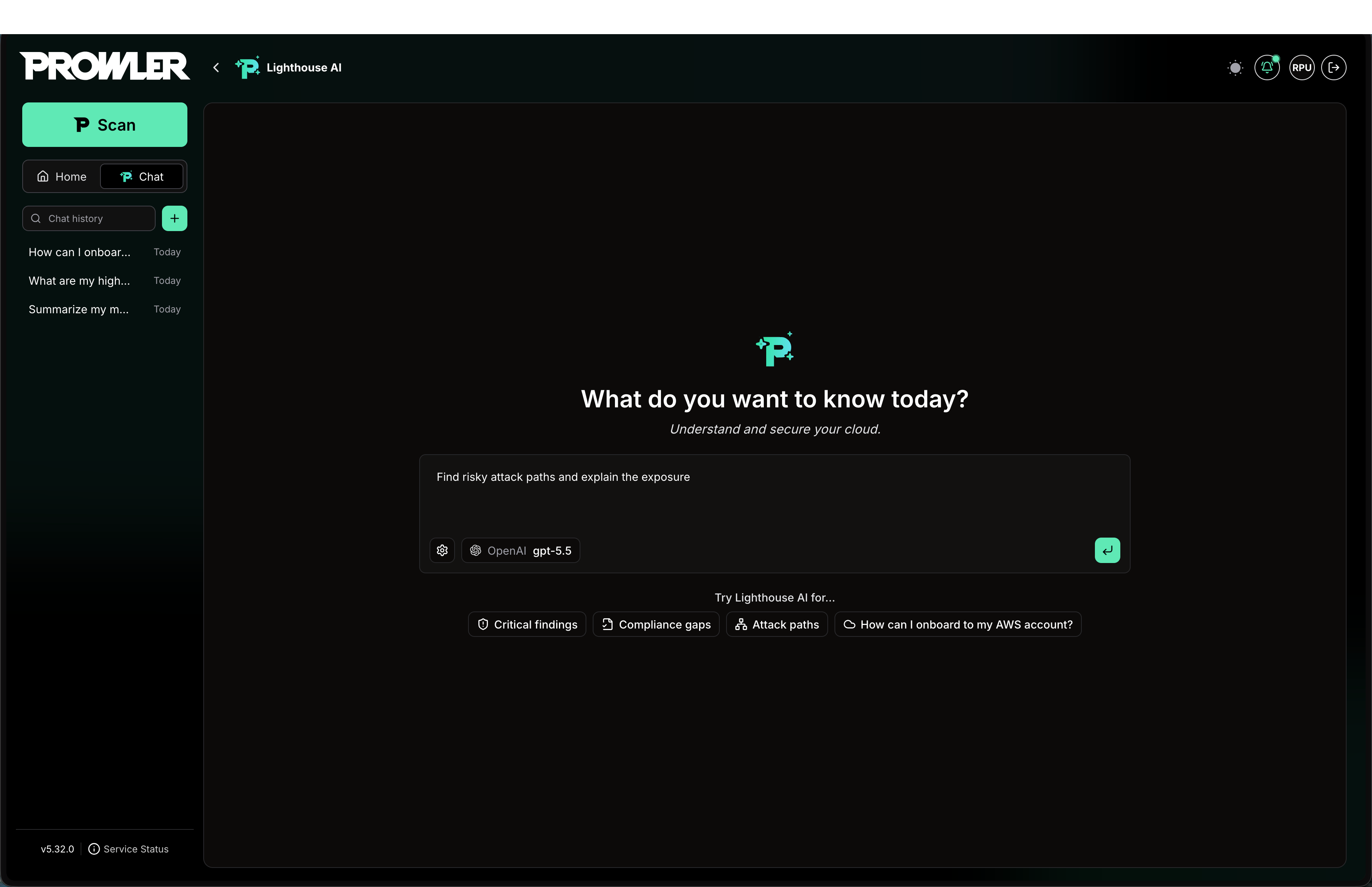
Side Panel
You do not have to switch to the full chat view to reach Lighthouse AI. A side panel is available on every page of Prowler Cloud. While collapsed it stays out of the way; open it from any dashboard, findings list, or configuration screen to ask questions without leaving what you are working on. Open it using the Lighthouse AI button, circled in red in the image below.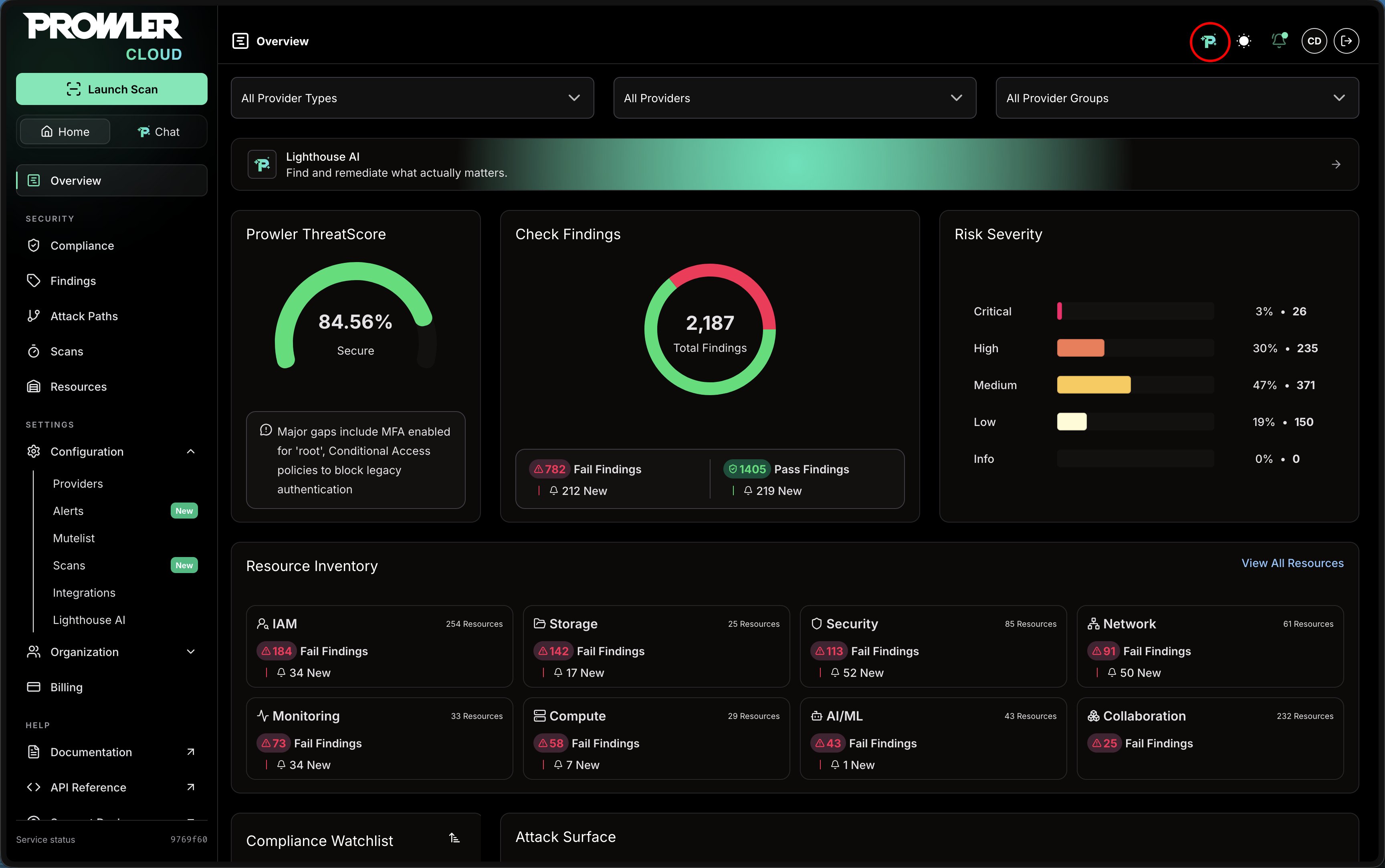
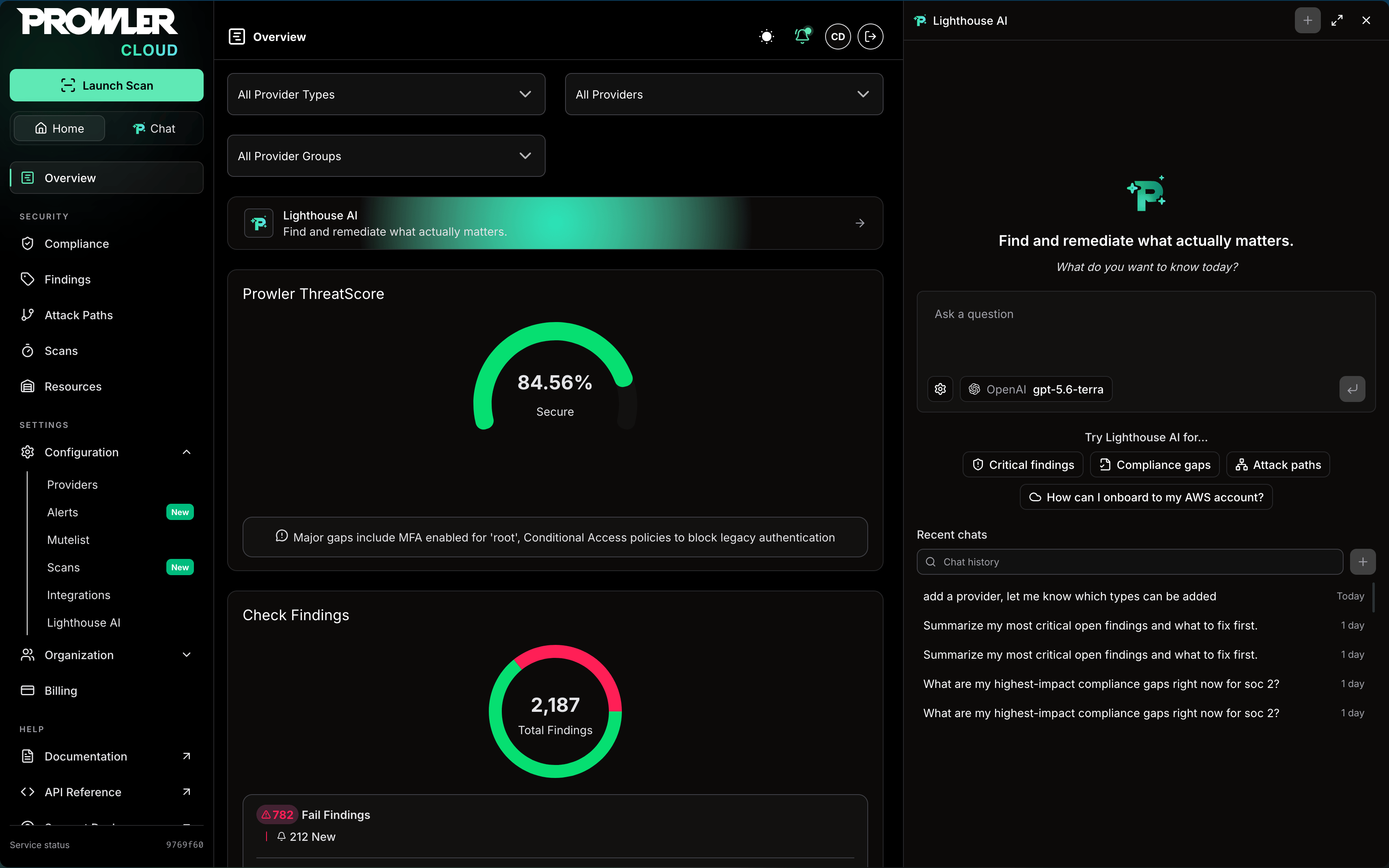
- Available everywhere: Summon the assistant from any page while you keep working in the normal view.
- Context-aware help: Ask about the findings, resources, or compliance data you are currently looking at.
- Continuous sessions: Conversations opened in the side panel are saved alongside the rest of your chat history.
Tool Usage
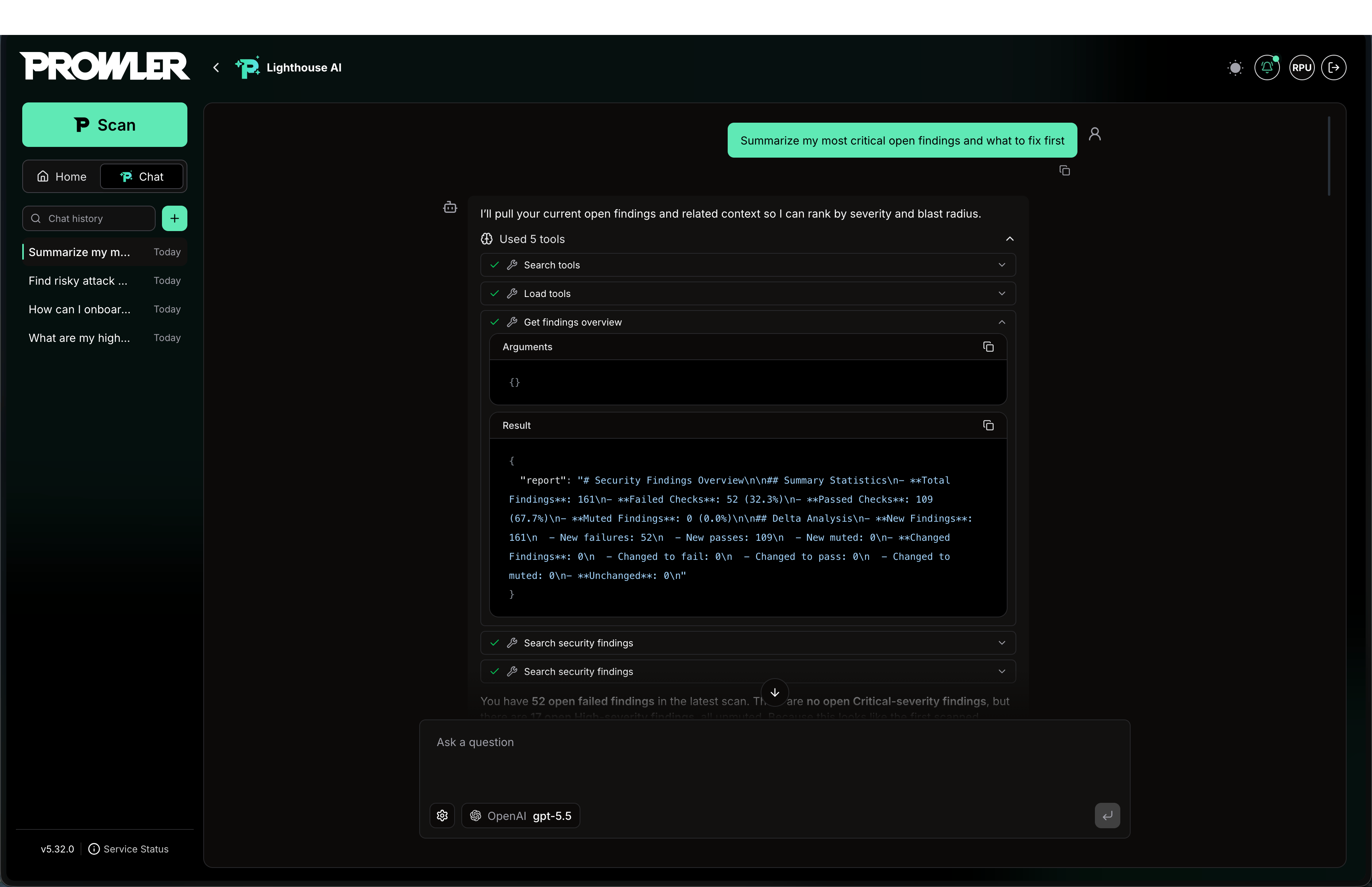
Lighthouse AI on Prowler Cloud renders the agent’s work as it happens, so responses are easier to follow and to trust. Tool calls and reasoning steps appear in the order they occur within the conversation.- Ordered steps: Tool calls and reasoning are shown in sequence, reflecting how the agent reached its answer.
- Tool visibility: The data tools invoked to retrieve findings and other Prowler information are displayed as the agent uses them.
- Thought process: The agent’s reasoning is presented alongside its actions, and can be expanded to review the full chain of steps.
Configuration
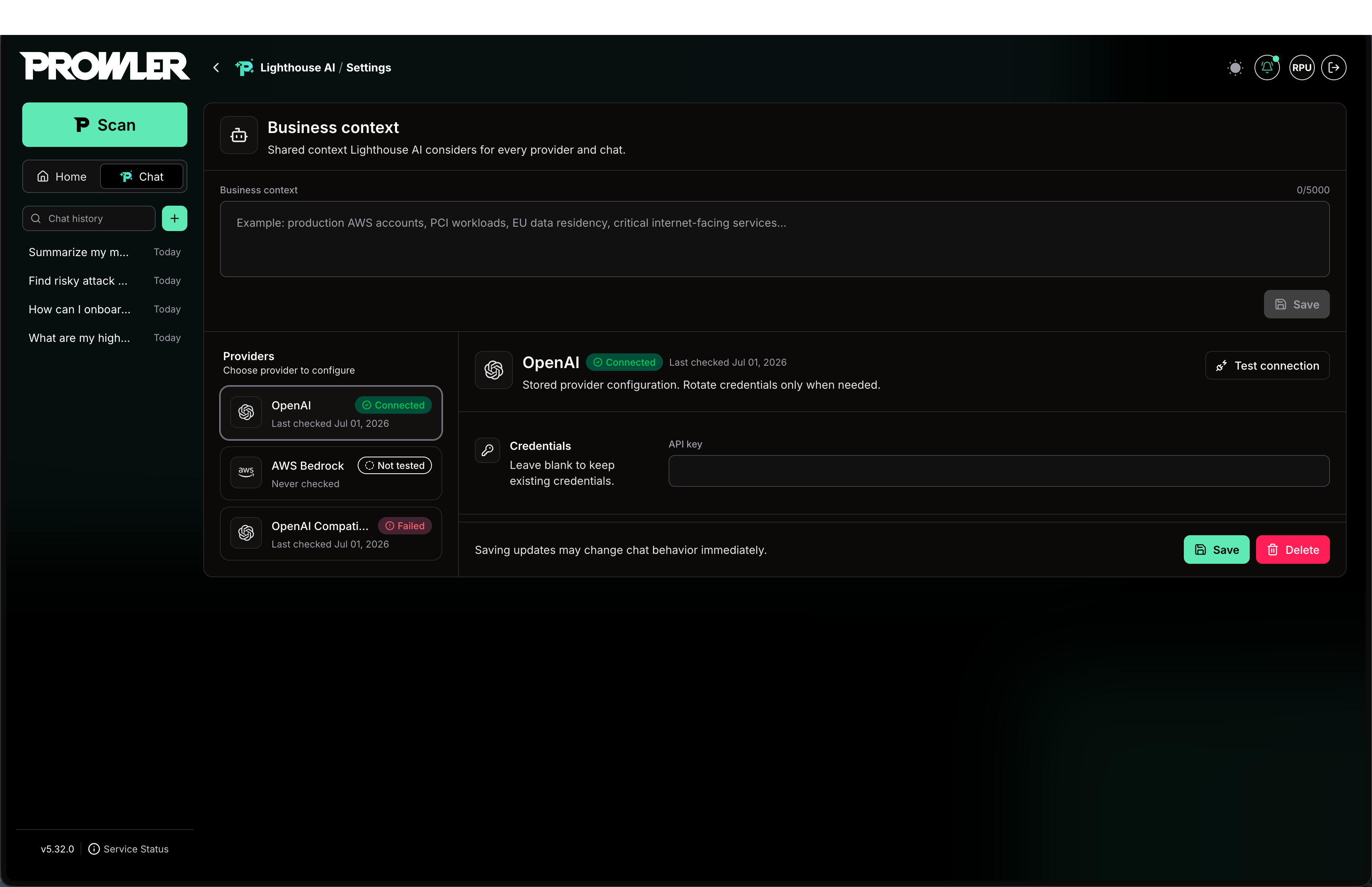
Configure Lighthouse AI on Prowler Cloud from Configuration → Lighthouse AI:- Click the desired provider (OpenAI, Amazon Bedrock, or OpenAI Compatible).
- Enter the required credentials.
- Click Save. The connection is validated automatically before the provider becomes available.
Business Context
At the top of the configuration page, the optional Business Context field lets teams add environment priorities, compliance requirements, and ownership details, so responses align with organizational needs. Lighthouse AI on Prowler Cloud supports OpenAI, Amazon Bedrock, and OpenAI-compatible providers, with GPT-5.5 as the default. For per-provider setup and how to switch the default provider or model, see Using Multiple LLM Providers.Capabilities
Lighthouse AI works through the Prowler MCP Server, which gives the agent a growing catalog of tools to explore and act on your security data. These actions run inside Prowler and never modify your cloud resources. Everything the agent can do maps to one of the following capability areas.Findings and Finding Groups
- Search and filter security findings across every connected provider by severity, status, region, service, check, date range, and muted state.
- Retrieve full finding details, including remediation guidance, check metadata, and affected resources.
- Summarize findings with aggregate statistics and trends.
- Browse finding groups aggregated by check and drill down into the specific resources each group affects.
Resources
- List and filter cloud resources by provider, region, service, resource type, and tags.
- Inspect a resource’s configuration, metadata, and related findings.
- Review the timeline of cloud API actions performed on a resource (AWS CloudTrail), including who did what and when.
- Get an aggregate overview of the resources Prowler has discovered.
Compliance
- Review high-level compliance status across all frameworks, with pass/fail statistics per framework.
- Get a requirement-level breakdown for a specific framework, including failed requirements and their associated findings.
Attack Paths
- List Attack Paths scans and discover the queries available for each completed scan.
- Run graph-based queries to reveal privilege-escalation chains and exploitable misconfigurations.
- Retrieve the Cartography graph schema to build accurate custom queries.
Scans and Providers
- List, inspect, and rename security scans across providers.
- Trigger manual scans and schedule automated daily scans for continuous monitoring.
- Search connected providers and check their connection status, connect new providers, or remove existing ones.
Muting
- Manage the mutelist for pattern-based bulk muting.
- Create, update, list, and delete finding-specific mute rules, each with a documented reason and audit trail.
Security Check Catalog and Documentation
- Browse and search the Prowler Hub catalog of security checks and compliance frameworks, including check code and automated fixers.
- Search and retrieve official Prowler documentation to answer how-to and product questions.
FAQ
Which LLM providers are supported? OpenAI (GPT models, including the default GPT-5.5), Amazon Bedrock (Claude, Llama, Titan, and others), and any OpenAI-compatible service such as OpenRouter. Can Lighthouse AI change my cloud environment? No. Lighthouse AI cannot modify the resources in your connected cloud providers (AWS, Azure, GCP, and others). It has read-only access to that environment and no tools to change it, even when the connected cloud credentials would allow it. Can Lighthouse AI change my Prowler Cloud environment? Yes. Lighthouse AI can take action within Prowler Cloud itself, such as connecting or removing providers, triggering and scheduling scans, and managing mute rules and the mutelist. See Capabilities for the full list of what it can do. These actions only affect your Prowler Cloud workspace, never the resources in your cloud providers.Looking for the Open Source Version?
Lighthouse AI is also available in the open-source Prowler Local Server. For its capabilities, FAQs, and limitations, see the open-source documentation.Lighthouse AI (Open Source)
Capabilities, FAQs, and limitations for Lighthouse AI in the open-source Prowler Local Server