

 About Us
Prerequisites
Set up authentication for Vercel with the Vercel Authentication guide before starting:- Create a Vercel API Token with access to the target team
- Identify the Team ID (optional, required to scope the scan to a single team)
Prowler Cloud
Onboard Vercel using Prowler Cloud
Prowler CLI
Onboard Vercel using Prowler CLI
Prowler Cloud
Step 1: Add the Provider
- Go to Prowler Cloud or launch Prowler Local Server.
-
Navigate to “Configuration” > “Providers”.
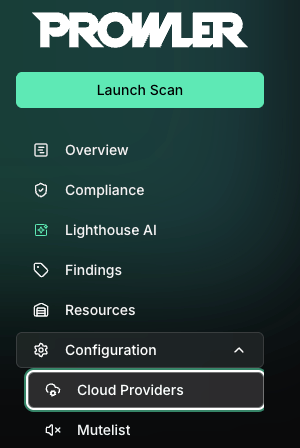
-
Click “Add Provider”.
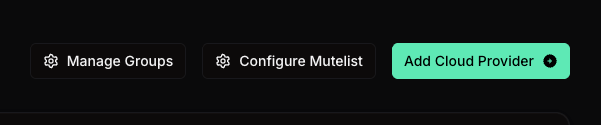
-
Select “Vercel”.
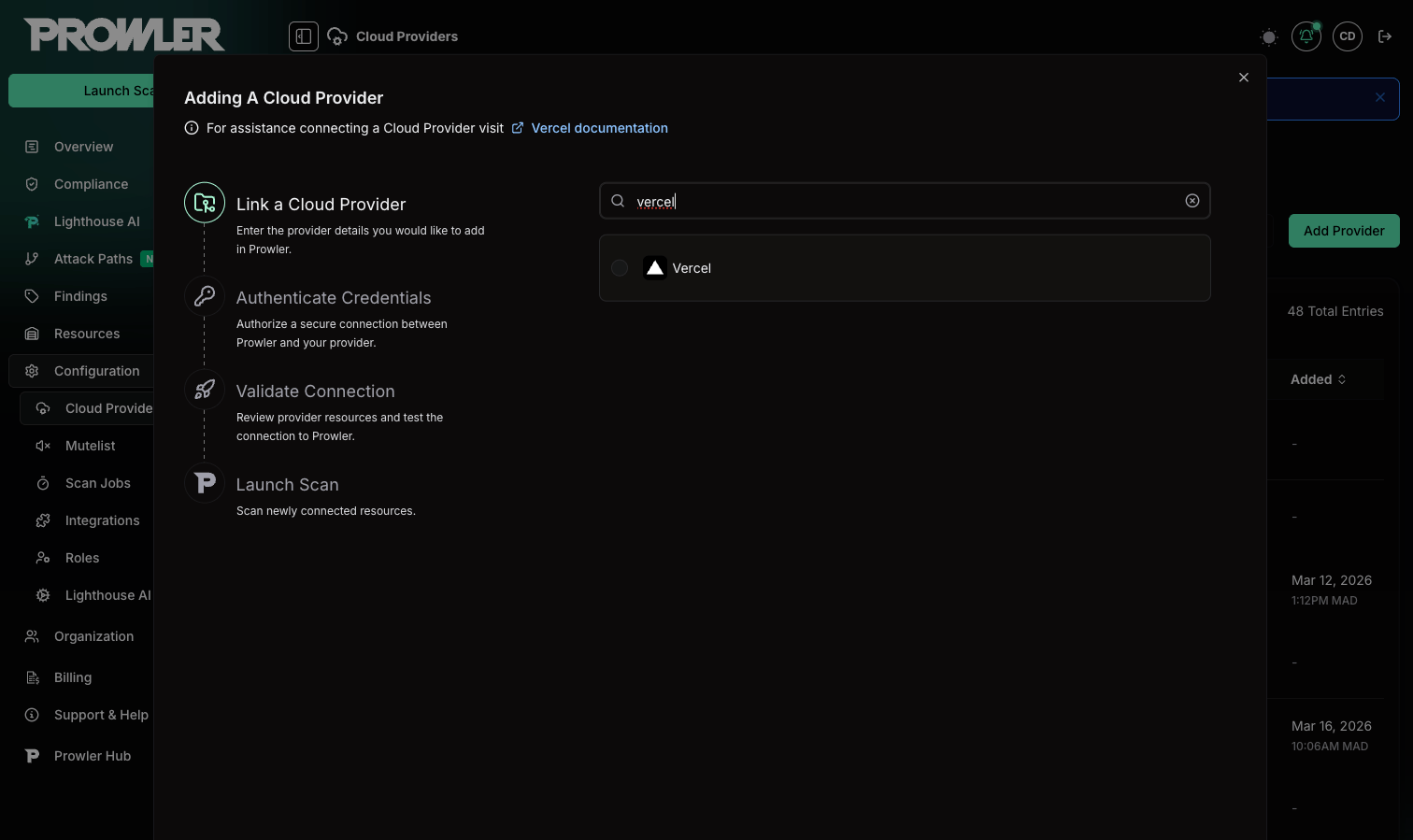
-
Enter the Team ID and an optional alias, then click “Next”.
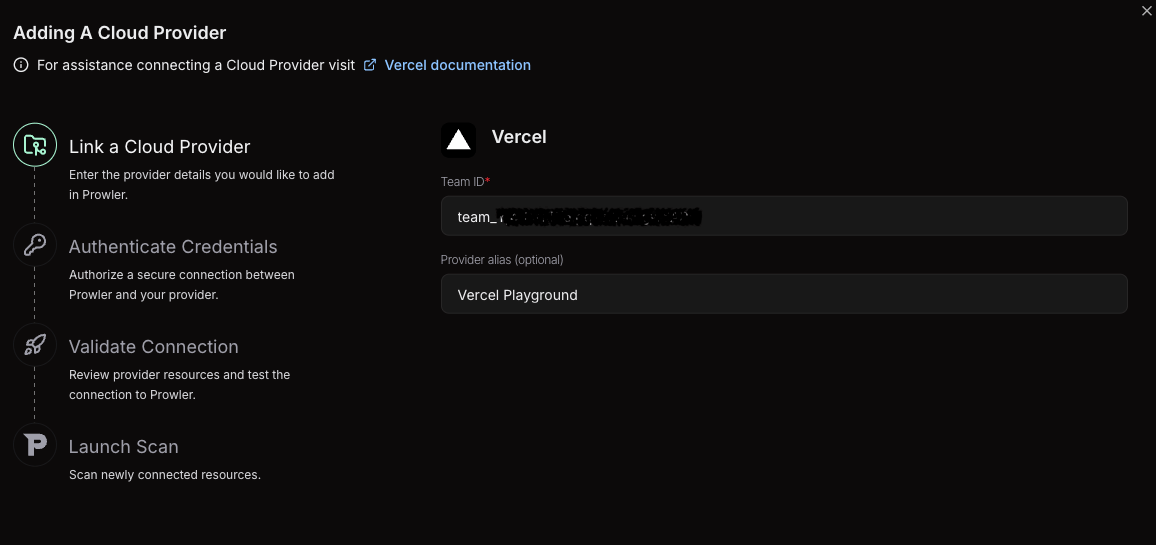
The Team ID can be found in the Vercel Dashboard under “Settings” > “General”. It follows the format
team_xxxxxxxxxxxxxxxxxxxx. For detailed instructions, see the Authentication guide.Step 2: Provide Credentials
-
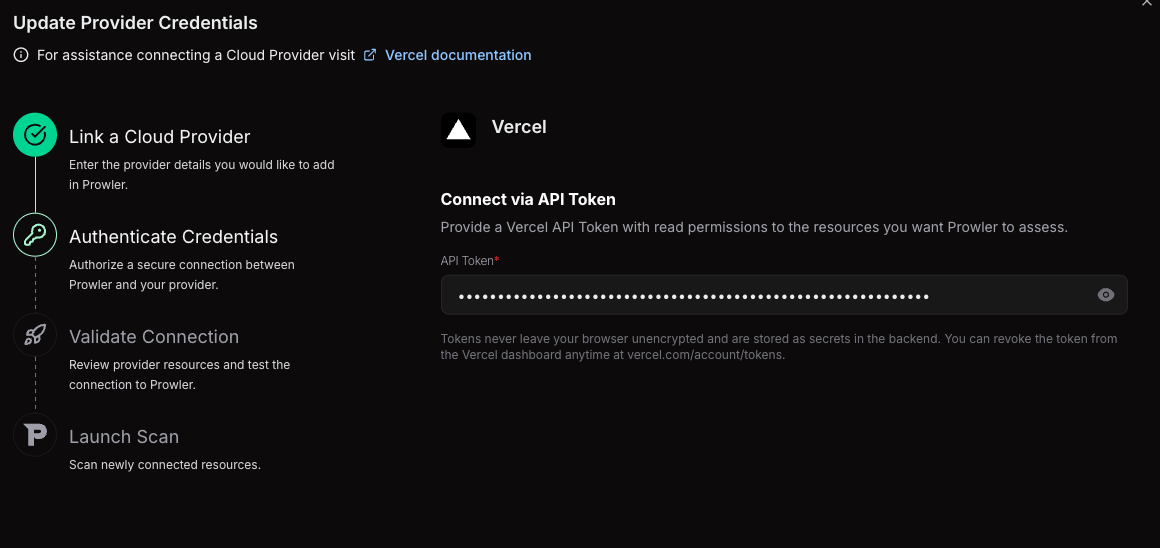
Enter the API Token created in the Vercel Dashboard.
Step 3: Launch the Scan
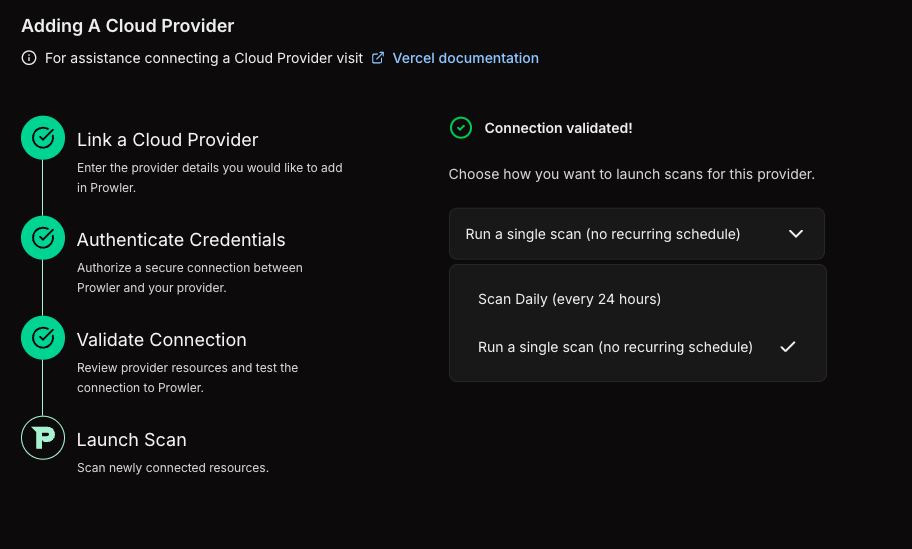
- Review the connection summary.
- Choose the scan schedule: run a single scan or set up daily scans (every 24 hours).
-
Click Launch Scan to start auditing Vercel.
Prowler CLI
Step 1: Set Up Authentication
Follow the Vercel Authentication guide to create an API Token, then export it:Step 2: Run the First Scan
Run a baseline scan after credentials are configured:Step 3: Filter the Scan Scope (Optional)
Filter by Team
To scan a specific team, set theVERCEL_TEAM environment variable with the Team ID or slug:
When no team is specified, Prowler auto-discovers all teams the authenticated user belongs to and scans each one.
Filter by Project
To scan only specific projects, use the--project argument:
Step 4: Use a Custom Configuration (Optional)
Prowler uses a configuration file to customize provider behavior. The Vercel configuration includes:Supported Services
Prowler for Vercel includes security checks across the following services:Checks With Explicit Plan-Based Behavior
Prowler currently includes 26 Vercel checks. The 11 checks below have explicit billing-plan handling in the provider metadata or check logic. When the scanned scope reports a billing plan, Prowler adds plan-aware context to findings for these checks. If the API does not expose the required configuration, Prowler may returnMANUAL and require verification in the Vercel dashboard.
The five firewall-related checks (
security_waf_enabled, security_custom_rules_configured, security_ip_blocking_rules_configured, security_rate_limiting_configured, and security_managed_rulesets_enabled) return MANUAL when the firewall configuration endpoint is not accessible from the API. The other 15 current Vercel checks do not currently include plan-specific handling in provider logic, but every Vercel check includes exactly one billing-plan metadata category (vercel-hobby-plan, vercel-pro-plan, or vercel-enterprise-plan) alongside its functional security category.