

 About Us
For muting individual findings without YAML configuration, use Simple Mutelist to mute findings directly from the Findings table.
What Is Advanced Mutelist?
Advanced Mutelist enables users to create powerful, pattern-based muting rules using YAML configuration:- Define complex muting patterns using regular expressions
- Mute findings by check, region, resource, or tag across multiple accounts
- Apply wildcards to mute entire categories of findings
- Create exceptions within broad muting rules
- Maintain audit trails of muted findings for compliance purposes
Prerequisites
Advanced Mutelist requires the Manage Account permission. See RBAC Administrative Permissions for details.
- Valid access to Prowler Cloud with appropriate permissions
- A provider added to Prowler Cloud
- Understanding of the security implications of muting specific findings
Step 1: Connect a Provider
To configure Advanced Mutelist:- Log into Prowler Cloud
- Navigate to the Providers page
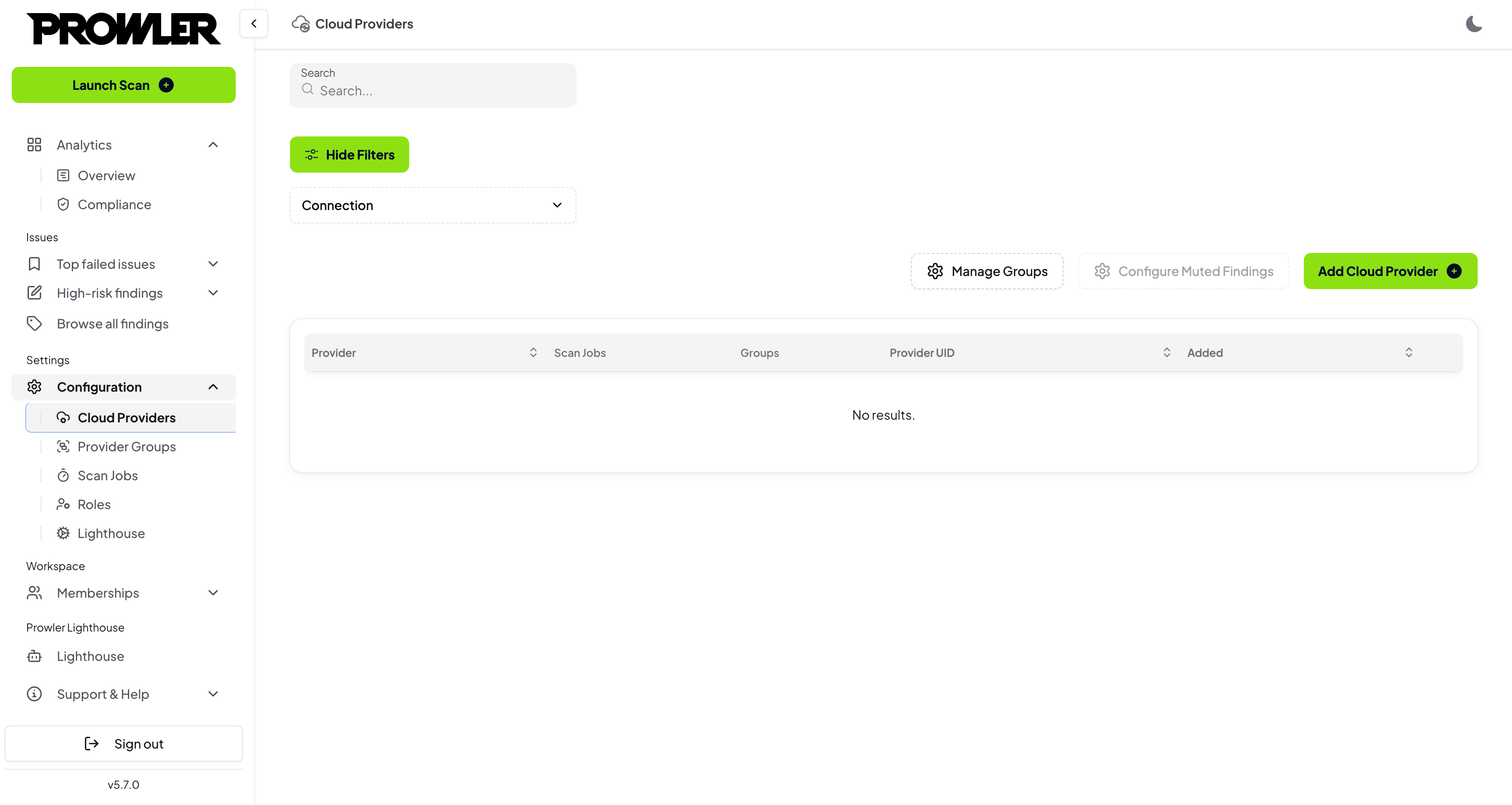
- Connect a provider to enable Mutelist configuration
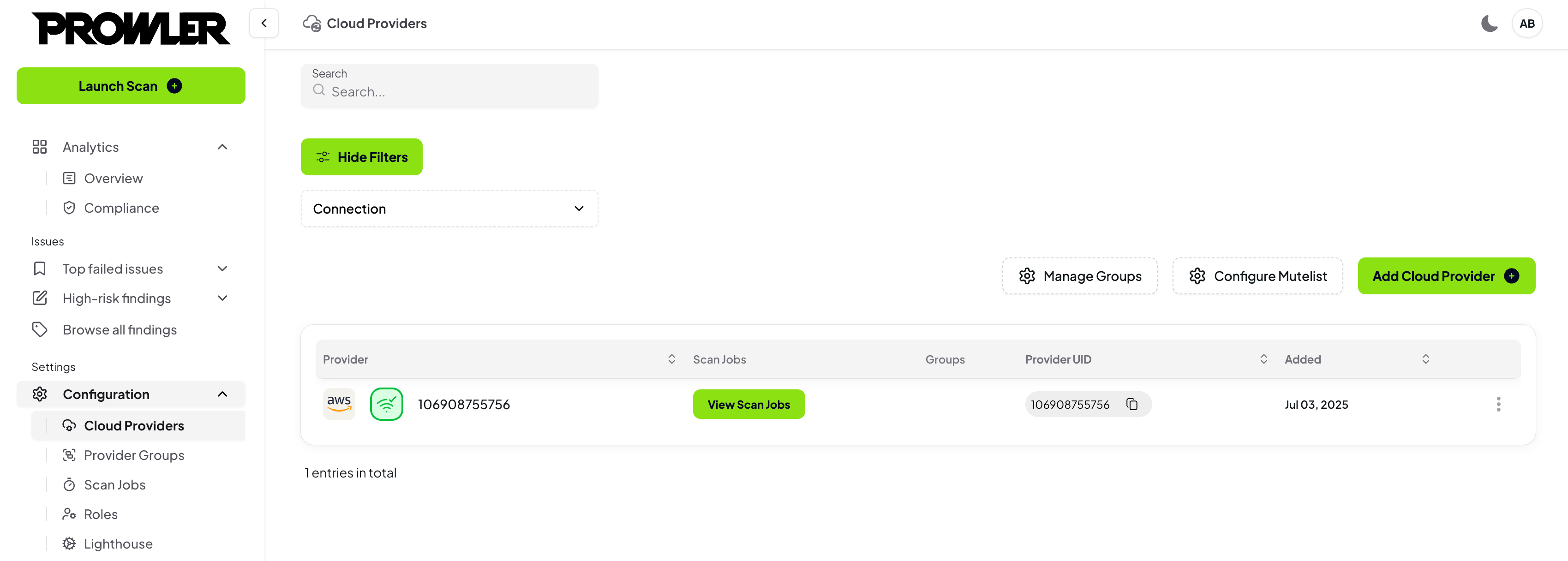
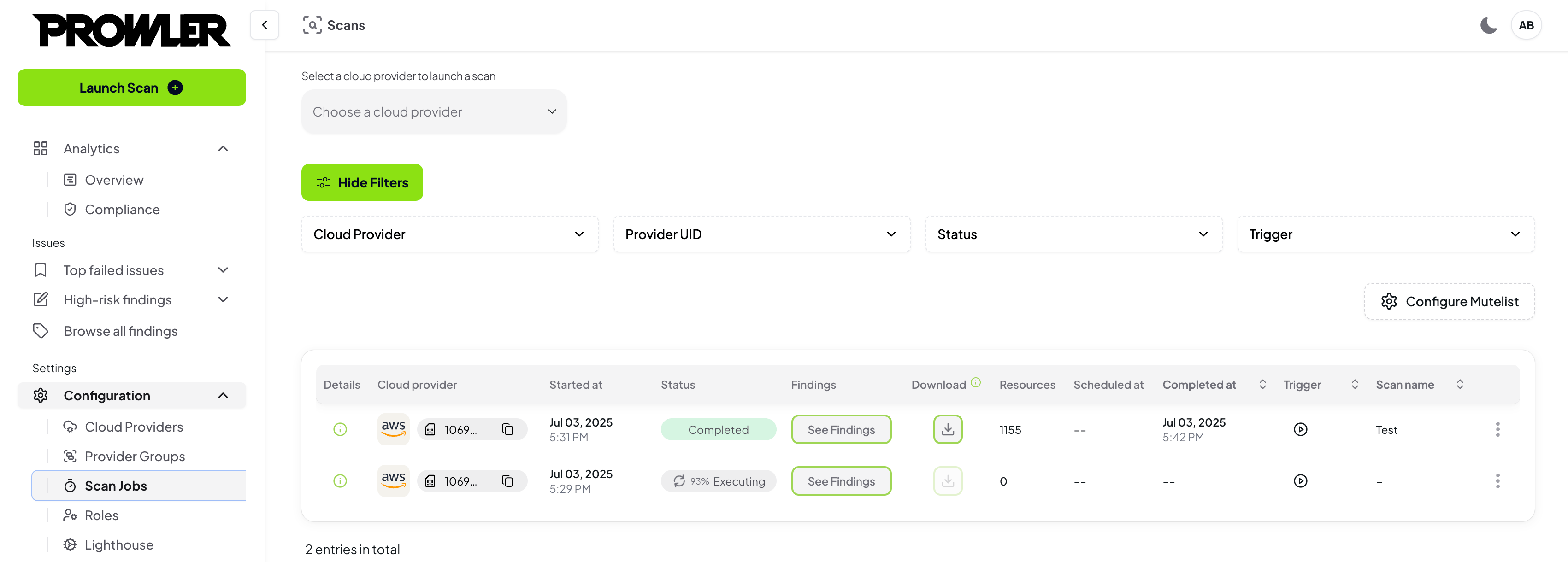
Step 2: Configure Advanced Mutelist
- Navigate to the Mutelist page from the left navigation menu
- Select the “Advanced” tab
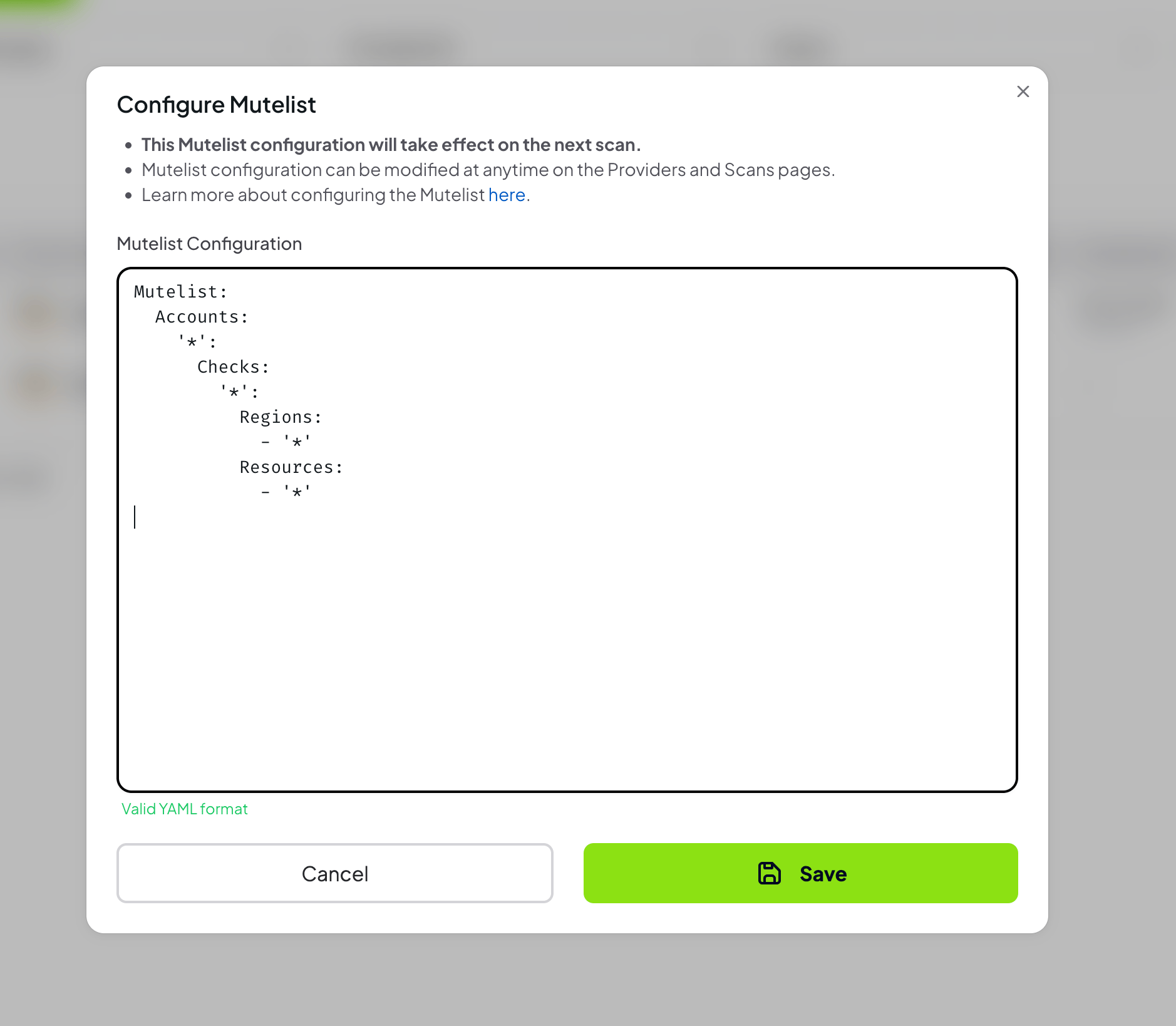
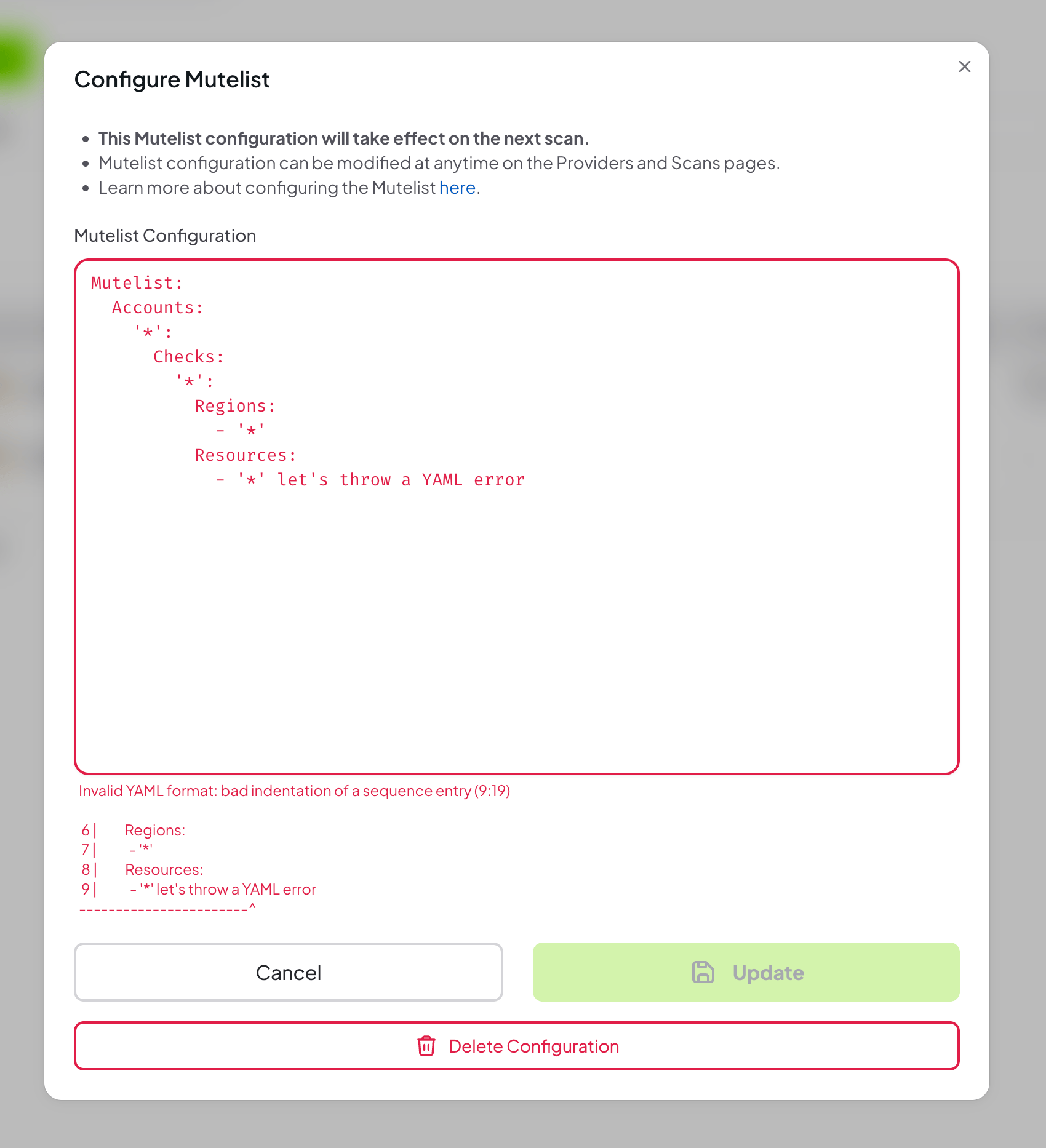
- Provide a valid Mutelist configuration in
YAMLformat
The YAML format follows the same specification as Prowler CLI. See CLI Mutelist documentation for detailed syntax reference.
Step 3: Review and Update the Configuration
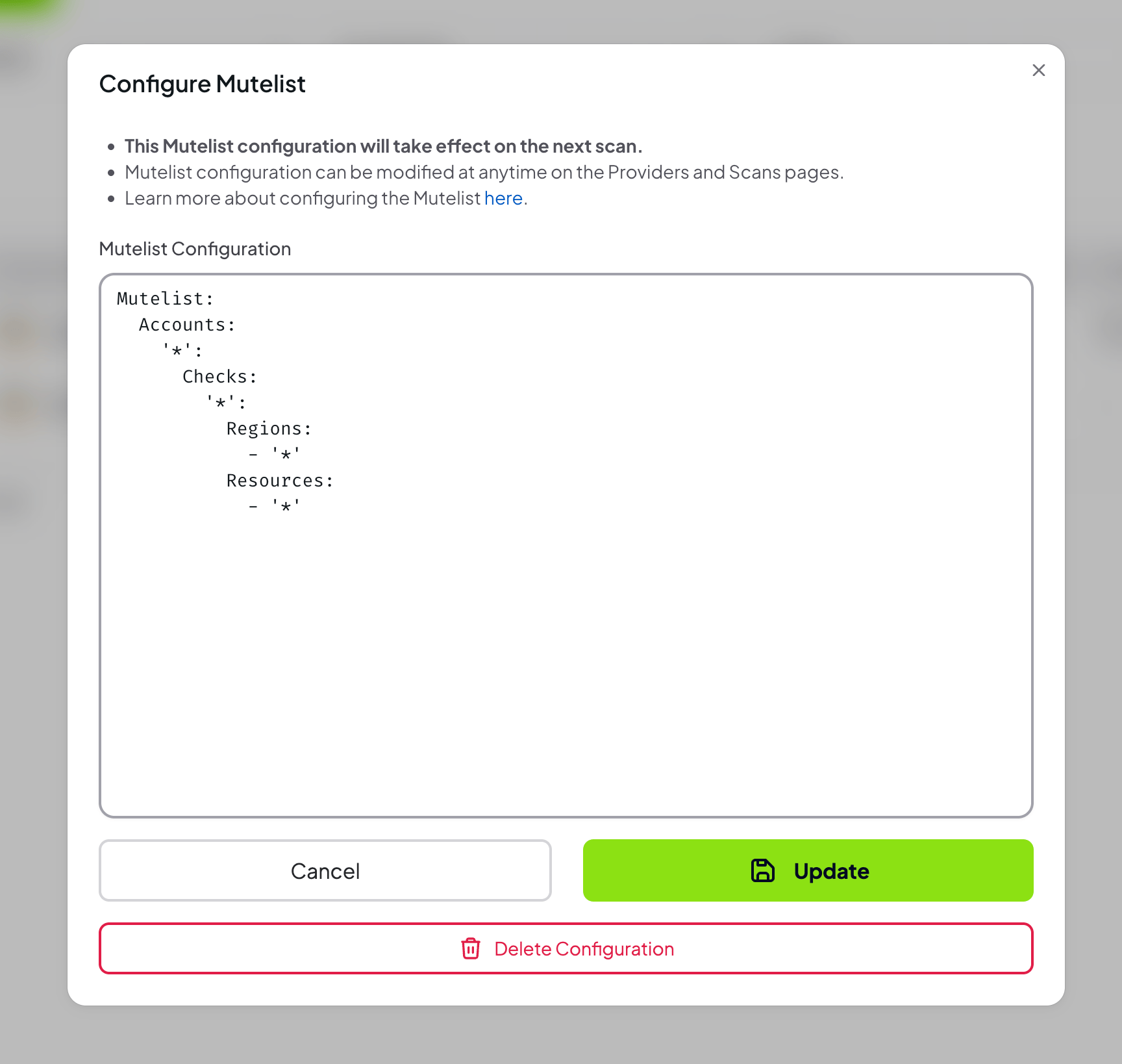
- Once added, the configuration can be updated or removed from the Advanced tab
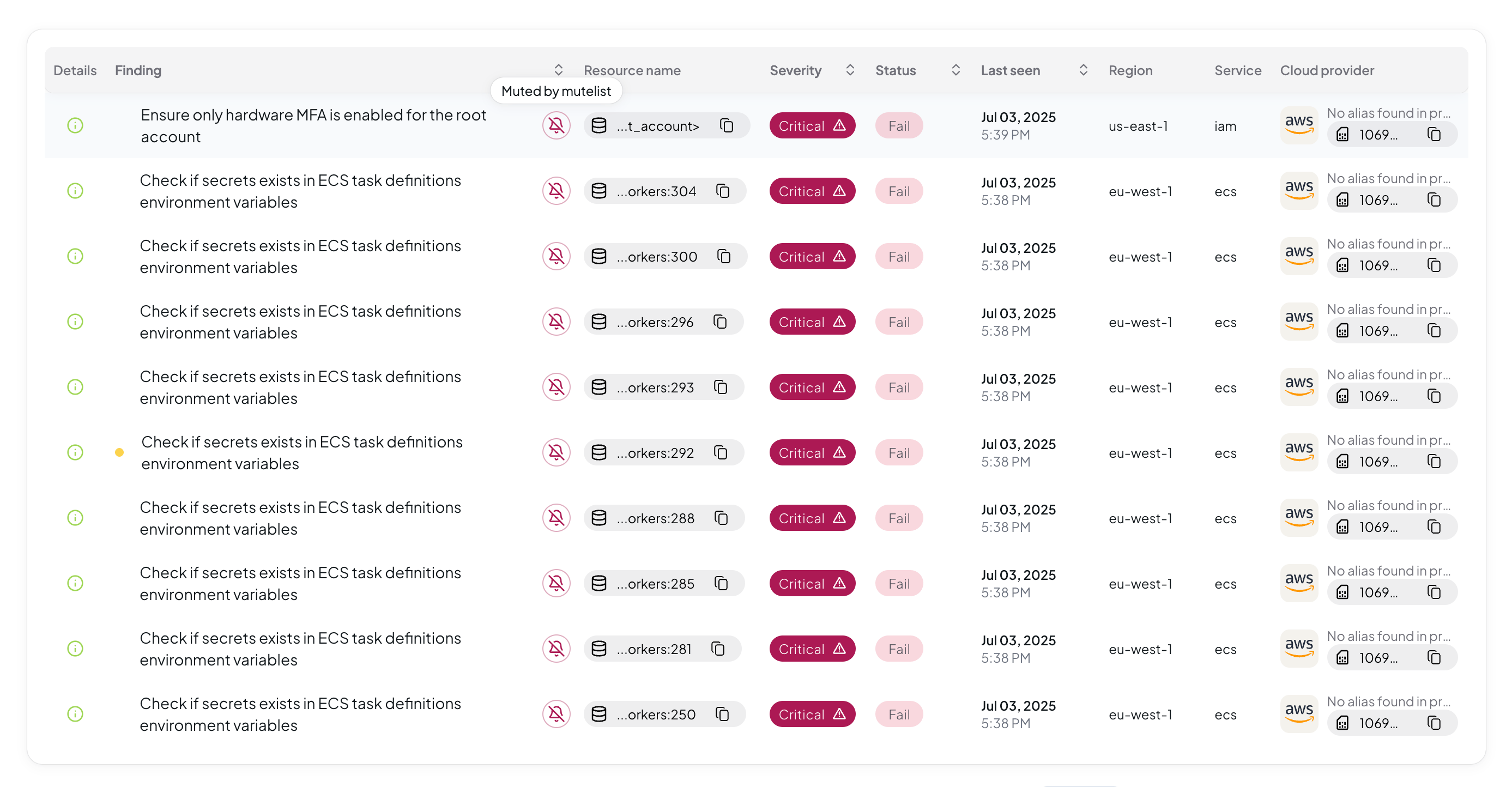
Step 4: Verify Muted Findings in Scan Results
- Run a new scan
- Navigate to the Findings page to verify muted findings
YAML Configuration Examples
Below are ready-to-use examples for different cloud providers. For detailed syntax and logic explanation, see CLI Mutelist documentation.AWS Provider
Basic AWS Mutelist
AWS Service-Wide Muting
AWS Tag-Based Muting
Azure Provider
For Azure provider, the Account ID is the Subscription Name and the Region is the Location.
Basic Azure Mutelist
Azure Resource Group Muting
GCP Provider
For GCP provider, the Account ID is the Project ID and the Region is the Zone.
Basic GCP Mutelist
GCP Project-Wide Muting
Kubernetes Provider
For Kubernetes provider, the Account ID is the Cluster Name and the Region is the Namespace.
Basic Kubernetes Mutelist
Kubernetes Namespace Muting
Microsoft 365 Provider
Basic Microsoft 365 Mutelist
Microsoft 365 Tenant-Wide Muting
Multi-Cloud Mutelist
You can combine multiple providers in a single mutelist configuration:Advanced Mutelist Features
Using Regular Expressions
Using Exceptions
Tag-Based Logic
Priority: Advanced vs. Simple Mutelist
When both Advanced Mutelist and Simple Mutelist rules match the same finding, the Advanced Mutelist takes higher priority. The finding will be muted with the reason “Muted by mutelist”. If a finding is not matched by the Advanced Mutelist but matches a Simple Mutelist rule, the Simple rule’s custom justification is used instead.Best Practices
- Start Small: Begin with specific resources and gradually expand
- Document Reasons: Always include descriptions for audit trails
- Regular Reviews: Periodically review muted findings
- Use Tags: Leverage resource tags for better organization
- Test Changes: Validate mutelist changes in non-production environments
- Monitor Impact: Track how muting affects your security posture
Validation
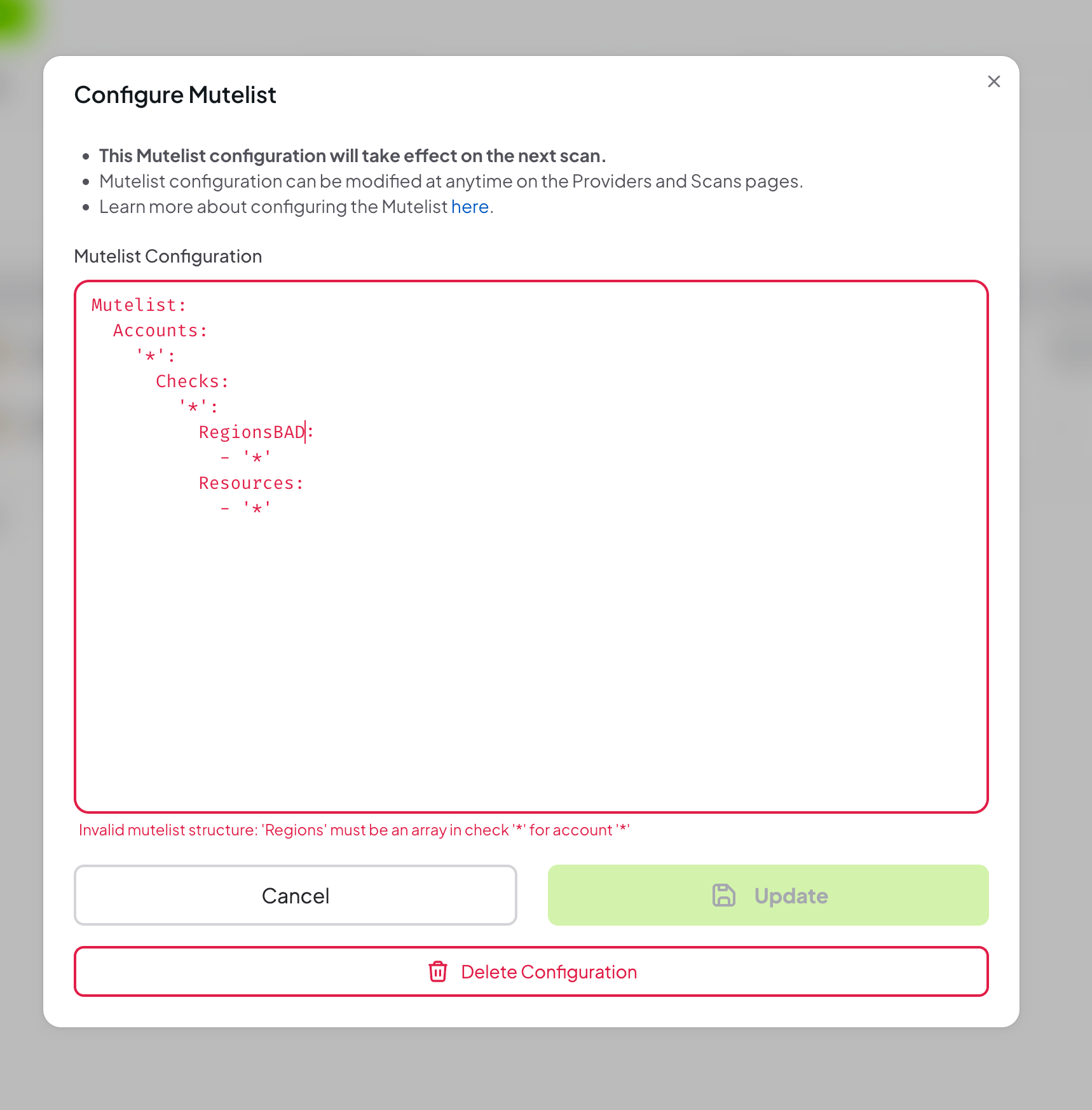
Prowler Cloud validates the mutelist configuration and will display errors for:- Invalid YAML syntax
- Missing required fields
- Invalid regular expressions
- Unsupported provider-specific configurations