

 About Us
- Centralized security visibility: Consolidate findings from multiple AWS accounts and regions
- Native AWS integration: Leverage existing AWS security workflows and compliance frameworks
- Automated finding management: Archive resolved findings and filter results based on severity
- Cost optimization: Send only failed findings to reduce AWS Security Hub costs
- Real-time updates: Automatically export findings after each scan completion
How It Works
When enabled and configured:- Scan results are automatically sent to AWS Security Hub after each scan completes
- Findings are formatted in AWS Security Finding Format (ASFF)
- The integration automatically detects new AWS regions to send findings if the Prowler partner integration is enabled
- Previously resolved findings are archived to maintain clean Security Hub dashboards
Refer to AWS Security Hub pricing for cost information.
Prerequisites
Before configuring AWS Security Hub Integration in Prowler Cloud, complete these steps:AWS Security Hub Setup
Enable the Prowler partner integration in AWS Security Hub by following the AWS Security Hub setup documentation.AWS Authentication
Configure AWS credentials by following the AWS authentication setup guide.Configuration
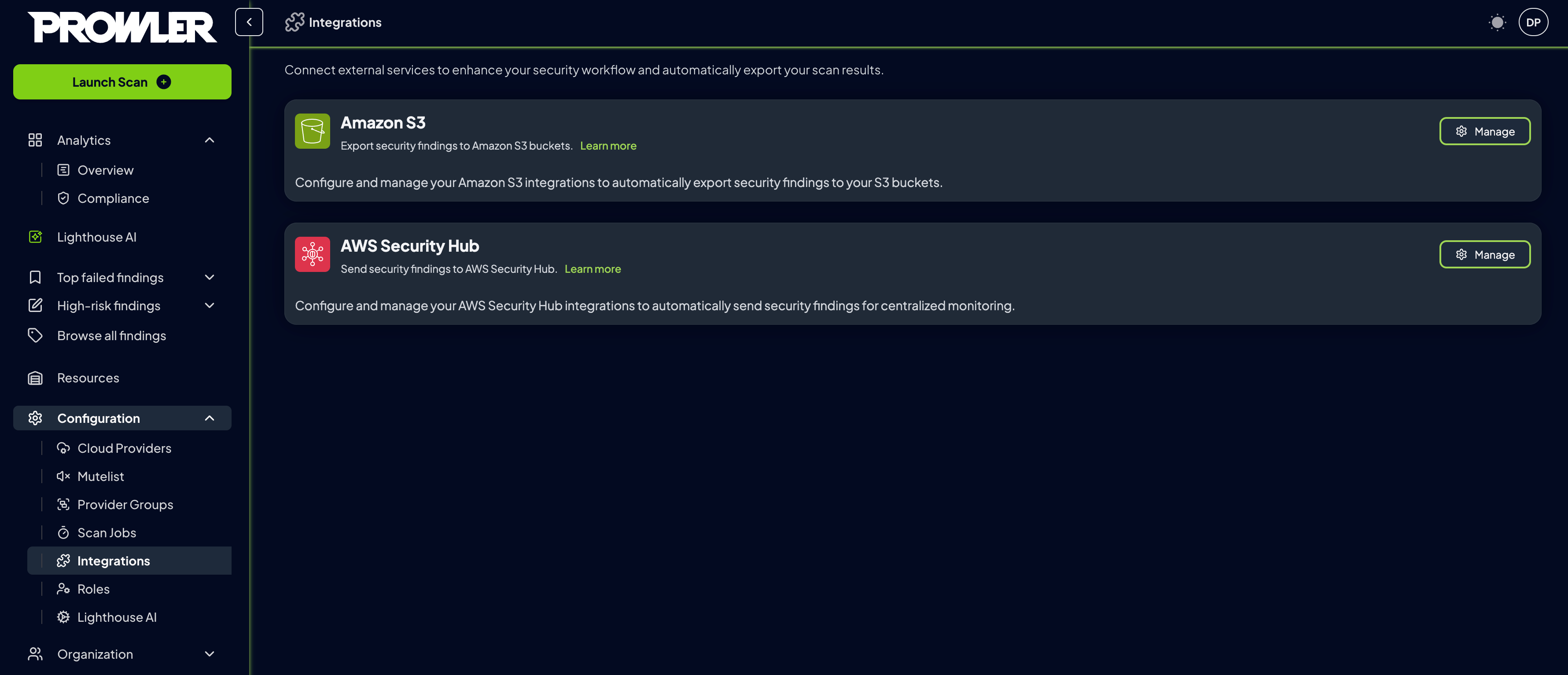
To configure AWS Security Hub integration in Prowler Cloud:- Navigate to Integrations in Prowler Cloud
-
Locate the AWS Security Hub card and click Manage, then select Add integration
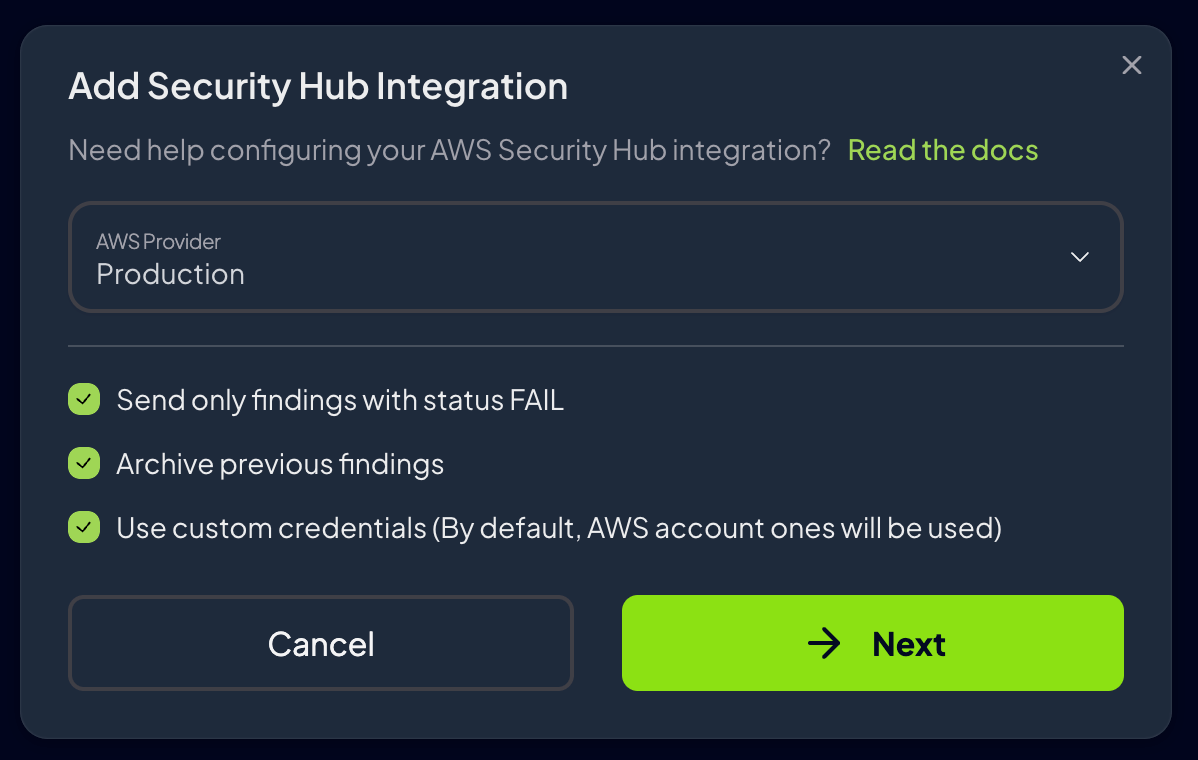
- Complete the integration settings
- AWS Provider: Select the AWS provider whose findings should be exported to Security Hub
-
Send Only Failed Findings: Filter out
PASSfindings to reduce AWS Security Hub costs (enabled by default) -
Archive Previous Findings: Automatically archive findings resolved since the last scan to maintain clean Security Hub dashboards
- Configure authentication:
- Use Provider Credentials (recommended): Leverages the AWS provider’s existing credentials
- Custom Credentials: Configure separate credentials specifically for Security Hub access
-
Click Create integration to enable the integration
Integration Status
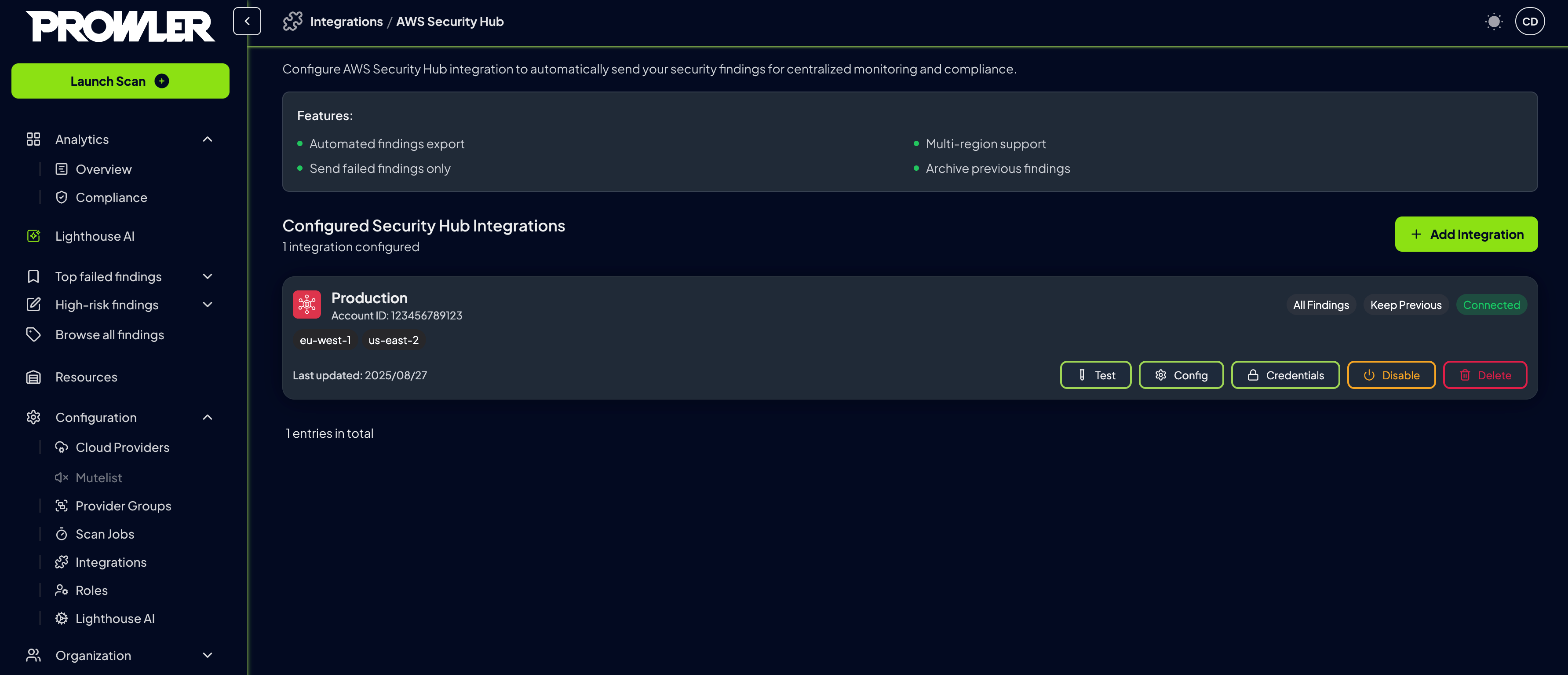
Once the integration is active, monitor its status and make adjustments as needed through the integrations management interface.- Review configured integrations in the management interface
-
Each integration displays:
- Connection Status: Connected or Disconnected indicator.
- Provider Information: Selected AWS provider name.
- Finding Filters: Status of failed-only and archive settings.
- Last Checked: Timestamp of the most recent connection test.
- Regions: List of regions where the integration is active.
Actions
Each Security Hub integration provides several management actions accessible through dedicated buttons:Viewing Findings in AWS Security Hub
After successful configuration and scan completion, Prowler findings automatically appear in AWS Security Hub. For detailed information about accessing and interpreting findings in the Security Hub console, refer to the AWS Security Hub findings documentation.Troubleshooting
Connection test fails:- Verify AWS Security Hub is enabled in target regions
- Confirm Prowler integration is accepted in Security Hub
- Check IAM permissions include required Security Hub actions
- If using IAM Role, verify trust policy and External ID
- Ensure integration shows “Connected” status
- Verify a scan has completed after enabling integration
- Check Security Hub console in the correct region
- Confirm finding filters match expectations
- For provider credentials, verify provider configuration
- For custom credentials, check access key validity
- For IAM roles, confirm role ARN and External ID match